Upscal: The Best Offline AI Image Upscaler for Low Resolution Photos on Windows
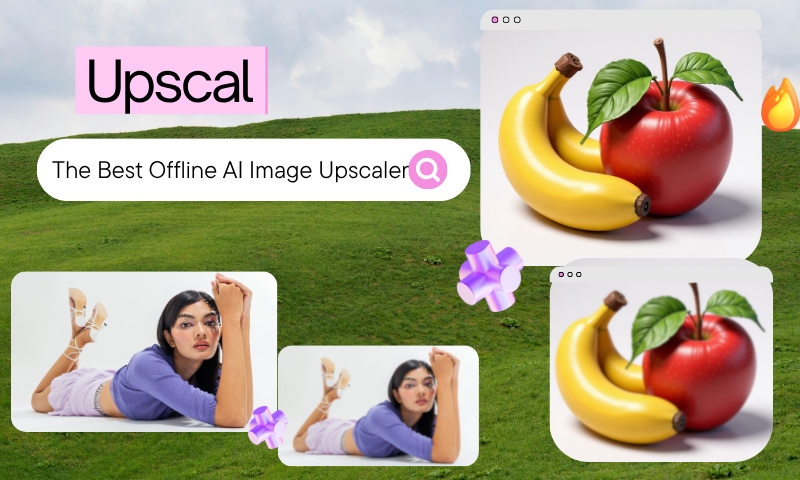
Have you ever discovered an old family photo that captured a beautiful memory, only to realize it looked blurry on today's high-resolution screens? Maybe you downloaded an image from social media, prepared a presentation, or found an old logo that simply wasn't sharp enough.
It's frustrating. Images lose quality for many reasons: Older cameras produced fewer pixels. Photos become compressed after multiple uploads. Screenshots are often captured at small sizes. Messaging apps reduce image quality automatically. Cropping removes valuable details.

As display technology advances, these issues become even more noticeable. A photo that looked perfectly acceptable ten years ago may now appear soft, pixelated, and lacking detail.
Many people turn to online image enhancement tools. While these services can produce excellent results, they require uploading personal photos to remote servers. For sensitive documents, confidential business materials, or cherished family memories, that isn't always the most comfortable option.

That's exactly why offline AI image enhancement has become increasingly popular. Instead of sending your pictures across the internet, modern desktop software processes everything locally. Your files stay on your computer, giving you greater control over your privacy while often delivering faster performance.
Let's Meet Upscal for Windows
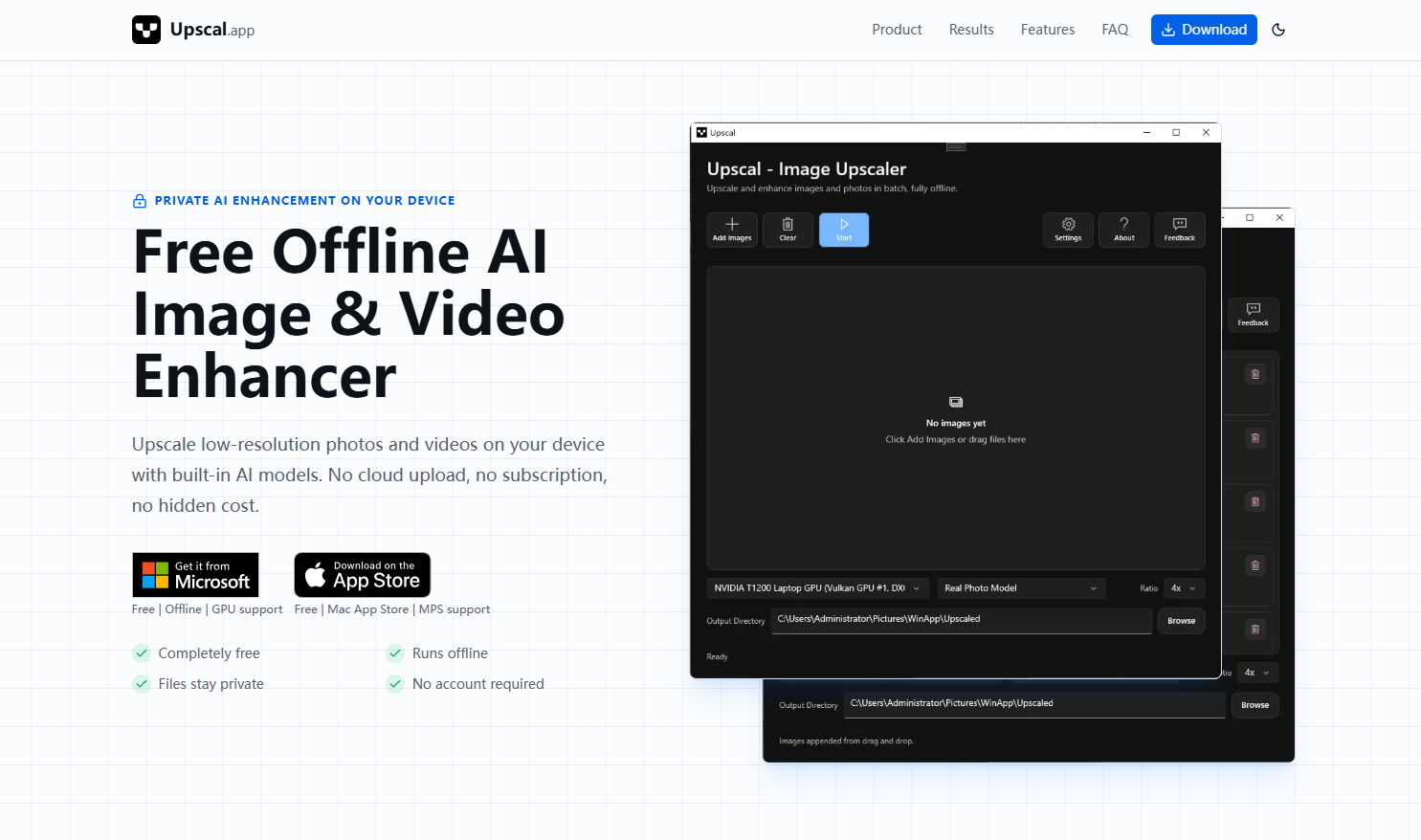
Upscal is an AI image upscaler for Windows that delivers professional-quality image enhancement without relying on cloud processing. Instead of uploading your files to remote servers, Upscal performs every step of the upscaling process locally on your computer, giving you greater privacy, faster workflows, and complete control over your images.
Unlike traditional resizing software that stretches existing pixels, Upscal uses advanced deep learning models trained on millions of images to reconstruct missing details intelligently.
By analyzing edges, textures, patterns, and fine visual features, the AI generates higher-resolution images that look sharper, cleaner, and more natural while preserving the original style and character of the artwork or photograph.
Upscal also includes a comprehensive set of features designed for both casual users and creative professionals. Highlights include fully offline AI processing, multiple upscaling models optimised for different content types, batch image processing for handling large collections, GPU acceleration for faster performance, Windows compatibility, cross-platform support, and the transparency of its open-source development.
Whether you're restoring old family photos, enhancing AI-generated artwork, improving product images, or preparing graphics for print, Upscal provides a powerful yet easy-to-use solution.


Core Features That Make Upscal Stand Out
1. Completely Offline AI Processing
One of Upscal's biggest advantages is its fully offline design. Unlike many cloud-based image enhancement services, Upscal processes every image directly on your Windows computer, so your files never leave your device.
This local workflow eliminates upload delays, server queues, and cloud storage concerns while giving you complete control over sensitive content. Whether you're restoring treasured family photographs or working with confidential client assets, offline AI processing delivers both convenience and greater peace of mind.

2. AI That Actually Understands Images
Traditional image enlargement adds pixels, often producing soft edges and blurry details. Upscal takes a far more intelligent approach by analyzing the actual content of each image, including edges, textures, patterns, facial features, natural objects, and fine lines.
Rather than making random guesses, AI reconstructs realistic details based on extensive deep-learning training, producing enlarged images that appear noticeably sharper, cleaner, and more natural than those created with conventional resizing methods.

3. Two AI Models for Different Image Types
Different images require different enhancement strategies, which is why Upscal offers two specialized AI models: Real Photo and Anime.

- Real Photo Model is optimized for photographs, including portraits, landscapes, architecture, and other real-world scenes. It enhances clarity while preserving natural textures, colors, and fine details.
- Anime Model is designed for anime, manga, illustrations, and digital artwork. It sharpens line art, preserves vibrant colors, and maintains the distinctive artistic style without introducing unwanted artifacts.
By choosing the model that best matches your image type, you can achieve more accurate upscaling, better detail preservation, and higher-quality results across a wide range of creative projects.

4. Batch Processing
When working with large image collections, processing files individually can quickly become time-consuming. Upscal's batch processing feature streamlines the workflow by allowing you to enhance multiple images in a single operation.
Select your images, choose the most suitable AI model, specify an output folder, and start the process. Upscal automatically handles the rest, making it an efficient solution for photographers, e-commerce businesses, designers, and marketing teams that regularly process large numbers of images.
5. GPU Acceleration
Upscal leverages modern GPU acceleration to significantly speed up AI image processing. By using your computer's graphics hardware rather than relying solely on the CPU, the software can upscale high-resolution images more efficiently while maintaining excellent output quality.
Faster processing means less waiting and a smoother workflow, allowing creators to complete everything from single-image enhancements to large batch jobs with greater productivity.
How Upscal Works on Windows
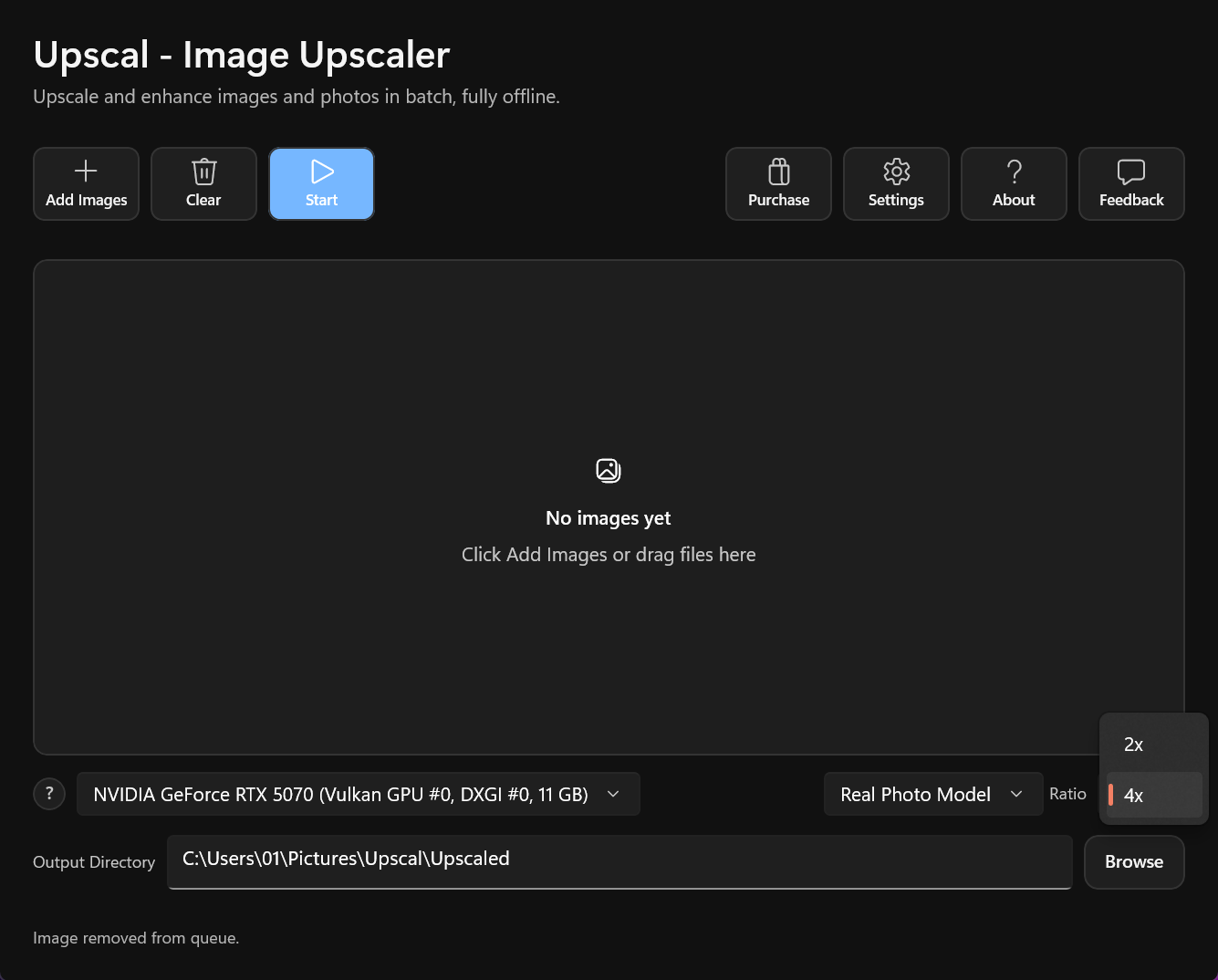
- Step 1: Install the Application
Download the latest Windows version from the official Upscal website and complete the installation. The interface is clean, modern, and beginner-friendly.
- Step 2: Import Images
Drag and drop a single image or an entire folder into the application. Click the "Add Image" icon in the top-left corner.
- Step 3: Select a Model and Magnification Level
Choose the model that best suits your image. In the bottom-right corner, you'll find different models optimized for various content types, such as realistic photos and anime art. Next to the model, you can select different magnification levels to enlarge your image as needed.
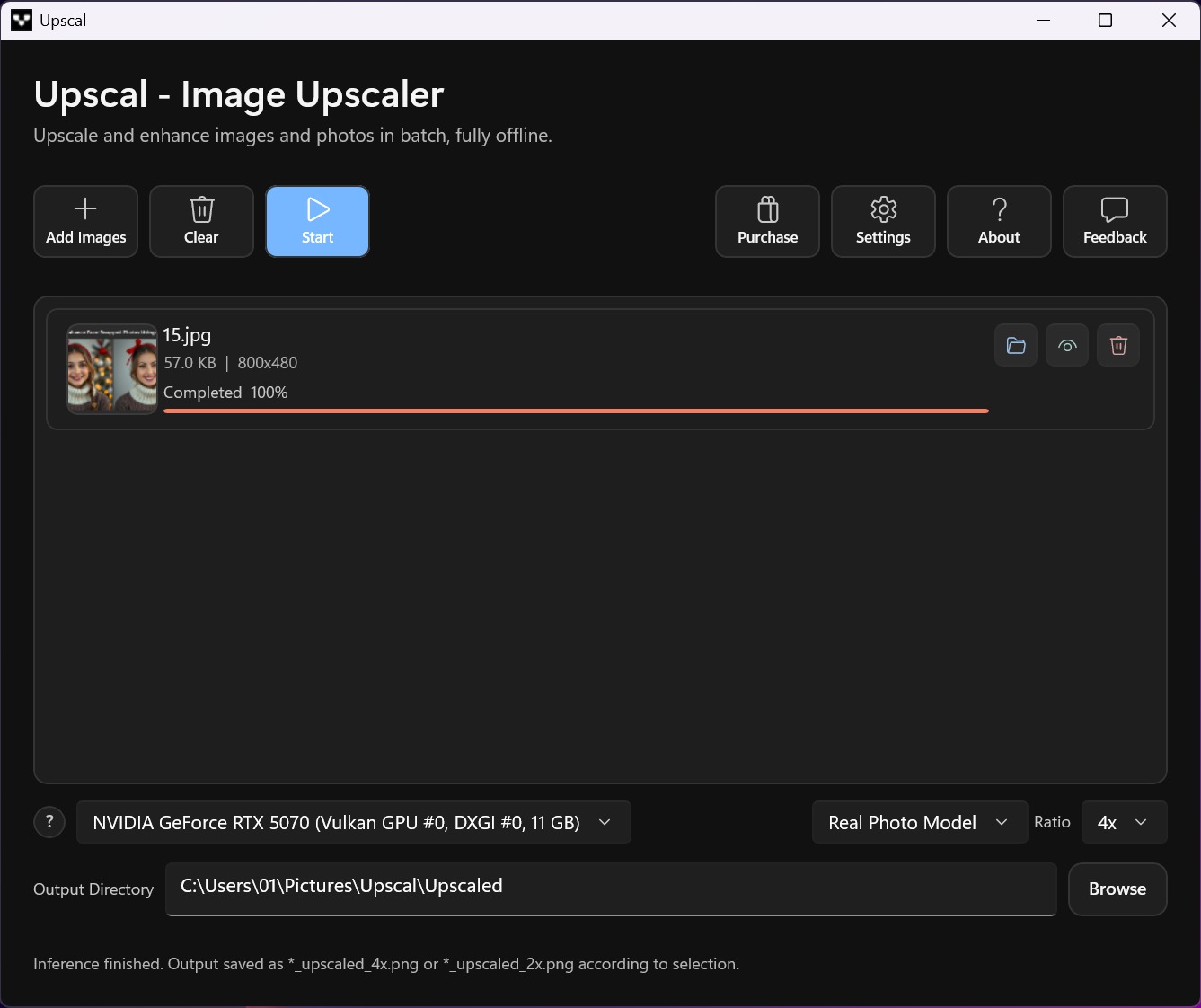
- Step 5: Start Processing
Click the blue "Start" button to let Upsscal do the heavy lifting. The progress display is clear and intuitive, making it easy to monitor batch processing.
- Step 6: Save the Enhanced Images
Once processing is complete, the enhanced images will be saved directly to your computer.
No uploads. No downloads. No waiting for cloud servers. Just fast, secure AI enhancement.
Performance and Speed: Designed for Real Productivity
One of the biggest concerns people have when using AI software is speed. After all, nobody wants to wait several minutes to enhance a single image. Fortunately, Upscal is built with performance in mind.
Unlike cloud-based services that depend on internet speed and server availability, Upscal performs all processing locally. That means your computer does the work, giving you consistent performance without having to worry about network congestion or upload limits.
The actual processing time depends on several factors:
- Your computer's CPU or GPU
- The size of the original image
- The selected AI model
- The desired upscaling factor
- Whether you're processing one image or a batch
For users with modern graphics cards, GPU acceleration significantly reduces processing time. Large photos that might take minutes on a CPU can often be completed much faster with a compatible GPU.

Efficient Memory Management
Upscal is designed to handle large images more efficiently than many traditional editing programs. Whether you're restoring a treasured family portrait or enlarging high-resolution artwork for printing, the application manages resources intelligently to keep your workflow smooth.
For professionals who process dozens or even hundreds of images each day, this efficiency translates into valuable time saved.
Best Use Cases for Upscal AI Image Upscaling
One of Upscal's greatest strengths is its versatility. It isn't designed for just one type of user or project. From preserving treasured memories to producing professional marketing materials, Upscal's AI-powered enhancement helps improve image quality across a wide range of creative and practical applications.
Restoring Old Family Photos
Old photographs often carry irreplaceable memories, but many survive only as faded prints, compressed digital copies, or low-resolution scans. Over time, details become difficult to see, and enlarging these images can make imperfections even more noticeable.
Upscal helps restore these treasured photos by enhancing sharpness, reducing visible artefacts, and reconstructing fine details, all while preserving the original look and feel of the image. Whether you're digitizing family albums, enlarging a childhood photo for display, or restoring a vintage portrait, AI upscaling can give old memories a new level of clarity without altering their authenticity.

Enhancing Social Media Content
High-quality visuals are essential for standing out on today's social media platforms, where compressed images can quickly lose their impact. Upscal helps creators prepare sharper, more polished photos before uploading them to platforms such as Instagram, Facebook, Pinterest, X, and LinkedIn.
By improving resolution and preserving fine details, Upscal helps images remain crisp across different screen sizes. Clearer visuals are more likely to capture attention, encourage engagement, and create a stronger first impression for personal brands, influencers, and businesses alike.
Improving Product Photography
For e-commerce businesses, image quality plays a major role in building customer confidence. Blurry or low-resolution product photos can make even high-quality products appear less professional.
Upscal enables online sellers to enhance product listings, promotional graphics, marketplace images, digital catalogs, and marketing banners with greater clarity and detail. Sharper images help customers better evaluate textures, colors, and product features, contributing to a more professional shopping experience and stronger visual branding. For sellers who also use digital catalogs or brochures, tools like FlowPaper can turn product PDFs into flipbooks, digital catalogs, brochures, or magazines, providing another way to present these enhanced visuals in a more engaging format.

Preparing Images for Printing
Images that look acceptable on a screen may reveal noticeable flaws when printed at larger sizes. Pixelation, soft edges, and missing details often become more apparent on posters, canvas prints, brochures, flyers, and photo books.
Upscal increases image resolution while reconstructing realistic details, helping produce cleaner, sharper prints that retain their quality even at larger dimensions. This makes it an excellent tool for photographers, designers, and anyone preparing images for professional printing.
Digital Artists and Designers
Creative professionals frequently need to enlarge illustrations, concept art, logos, textures, and AI-generated artwork for presentations, client projects, or commercial production. Conventional resizing often introduces blurry edges and loss of detail, reducing the overall quality of the artwork.
Upscal uses AI to intelligently preserve line work, textures, and fine visual elements, making it ideal for preparing portfolios, client presentations, merchandise, wallpapers, book covers, posters, and other high-resolution creative assets. It also pairs well with an AI poster maker, allowing designers to create eye-catching poster designs that remain crisp and professional even when scaled to larger formats.

Students and Educators
Educational resources often include scanned documents, historical photographs, diagrams, maps, and scientific illustrations that were created at relatively low resolutions. Improving these visuals can make learning materials easier to read and understand.
Upscal helps enhance the clarity of classroom presentations, research papers, educational posters, archival materials, and instructional graphics by producing sharper, more legible images. The result is more engaging content that supports clearer communication in both teaching and academic research.

Upscal vs Online AI Image Upscalers
Choosing between an offline and an online AI image upscaler depends on your priorities. Both approaches have strengths, but for many users, privacy and convenience make offline software the preferred choice.
| Feature | Upscal for Windows | Typical Online Upscaler |
| Internet Required | No | Yes |
| Local Processing | Yes | No |
| Privacy | Excellent | Depends on provider |
| Batch Processing | Yes | Usually limited |
| Upload Limits | None | Often restricted |
| Subscription Required | Usually No | Often Yes |
| Works Offline | Yes | No |
| Open Source | Yes | Rare |
For users handling confidential business files, personal photographs, or sensitive documents, local processing offers a level of confidence that cloud services cannot match.
Tips for Getting the Best Results
- Start with the Best Original Image: Even though Upscal can significantly improve low-resolution photos, it cannot recreate details that never existed. Using the highest-quality original available will always produce better results.
- Avoid Excessive Upscaling: Bigger isn't always better. If an image only needs to be twice as large, avoid increasing it four or eight times. Moderate scaling often produces the most natural-looking results.
- Preview Before Saving: Take a moment to compare the enhanced image with the original. Zoom in and inspect fine details such as eyes, hair, text, or edges to ensure the result meets your expectations.
- Keep Your Graphics Drivers Updated: Since Upscal can use GPU acceleration, keeping your graphics drivers current helps maximize performance and stability.
- Experiment with Different Models: Sometimes, the first model you choose won't deliver the perfect result. Trying an alternative AI model can reveal subtle improvements in textures, lighting, or sharpness. A little experimentation often leads to surprisingly beautiful outcomes.

Conclusion
Some remind us of unforgettable adventures. Others capture milestones we never want to forget—a child's first smile, a graduation ceremony, a family reunion, or a breathtaking sunset.
Unfortunately, time, compression, and outdated technology can leave these memories trapped in blurry, low-resolution images. That's where Upscal truly shines. By combining advanced AI with the privacy of offline processing, Upscal empowers users to restore clarity, intelligently enlarge images, and preserve precious moments without sacrificing security or quality.
As AI image enhancement continues to evolve, offline tools like Upscal demonstrate that powerful technology and user privacy can go hand in hand. If you're looking for a dependable, intelligent, and secure way to transform low-resolution photos into high-quality images, Upscal is a compelling choice worth exploring.