How to Make Blurry Images and Low-Quality Videos Clearer with AI Upscaling By Upscal

Have you ever opened an old video, hoping to relive a fond memory, only to find that the image is small and blurry? Maybe it's a home video from years ago. Maybe it's an old YouTube video, a clip you downloaded from social media, or a video shot on your phone that doesn't look great by today's standards.
On modern monitors or TVs, these flaws become especially noticeable. Before we clarify it, let's look at what causes the blurriness in the first place.

What Makes a Video Look Low-Quality?
Low Resolution and Missing Pixels
Common resolutions include:
| Resolution | Approximate Pixel Dimensions | Typical Use |
| 360p | 640 × 360 | Older web videos |
| 480p | 854 × 480 | SD video |
| 720p | 1280 × 720 | HD video |
| 1080p | 1920 × 1080 | Full HD |
| 4K | 3840 × 2160 | Ultra HD |
Compared to 1080p, video recorded at 360p contains significantly less visual information.
That is why, at a resolution as low as 360p, faces appear blurry, text is hard to read, and small objects lose their original shapes.
When you zoom in on a low-resolution video, you're essentially asking the display device to render information that doesn't actually exist in the original video. AI upscaling technology attempts to reconstruct some of the missing information through reasonable inference.

Compression Damage and Blocky Artifacts
Compression is another major cause. Various video-sharing platforms, such as video-sharing sites and instant messaging apps, typically compress files to reduce their size.
If the same video is repeatedly downloaded, edited, exported, and uploaded, the image quality may deteriorate further. For example, blocky areas may appear in the frame, textures may become blurry, edge details may appear jagged, details may be lost, and motion blur may occur.
AI-enhancement technology can sometimes make compressed videos clearer, but it cannot perfectly reverse every instance of compression.

Motion Blur and Out-of-Focus Footage
Sometimes, moving people may appear blurry because the camera's shutter speed is too slow to capture the action. Additionally, the camera may have focused on the background rather than the subject. These are two distinct issues.
AI may improve the visual clarity of some blurry images. Still, severe motion blur is more difficult to correct because the original frame may contain very little usable information.

Noise, Grain, and Poor Lighting
Older cameras and smartphone cameras often struggle to capture high-quality video in low-light conditions. This can result in noise, grain, specks, artifacts, and a loss of fine detail and texture. The better the raw footage quality, the more useful information the AI model can use.
What Is AI Video Upscaling?
AI video upscaling improves video resolution and clarity. Imagine you take a small photo and ask someone to enlarge and redraw it. Basic resizing tools might enlarge each pixel. An AI model, however, attempts to understand the patterns in the existing image and predict the additional details that should reasonably be present at that location.

AI Upscaling vs. Traditional Video Enlargement
Traditional resizing relies primarily on mathematical interpolation. If you use a basic scaling tool to convert a 480p video to 1080p, the software must generate additional pixels between the existing ones. While the image becomes larger, this doesn't necessarily mean it contains more detail.
AI super-resolution technology, by contrast, takes a different approach. After analyzing an image, it attempts to reconstruct details such as edges and textures. The result is an intelligent reconstruction based on existing information.

How AI Reconstructs Missing Visual Details
AI enhancement models are trained to recognize visual structures. For example, a model might encounter a blurry edge and infer that it should be a smoother, sharper boundary. A face might gain a clearer outline. The lines of a building might become sharper.
However, there is an important distinction between reconstructing plausible details and restoring authentic historical details.
If the width of a face in the original footage is only a few pixels, the model cannot know exactly what each missing feature originally looked like.

Why Video Upscaling Is Harder Than Image Upscaling
Video enhancement faces the additional challenge of temporal consistency.
Video consists of a sequence of frames, and AI must enhance each frame individually, which can create discrepancies in detail between frames. This can lead to flickering, inconsistent textures, or unnatural motion.
The output must remain visually stable even as the scene moves. The computational power required to process an entire video clip can be significantly higher than that needed to enhance a single image.

Why Choose Upscal for Low-Quality Video Enhancement?
Built-In AI Video Enhancement: Upscal provides built-in AI models for video enhancement. On Windows, you can choose from three models: "Fast," "Medium," and "High Performance."
The Mac version offers four models: "Fast," "Sharpen," "General," and "Anime." They differ in their priorities regarding processing speed, edge detail, overall enhancement quality, and animation content.

Offline Processing Keeps Videos on Your Device: For privacy reasons, you may not want your videos stored on someone else's servers. Upscal performs image and video enhancement processing locally.
No Account Required: Upscal does not require you to register an account. You can start using it immediately after installation.
Free AI Enhancement: Upscal's video enhancement features are completely free, with no subscription fees or hidden licensing costs. If you'd like to upgrade your account, you can choose from our available subscription plans.
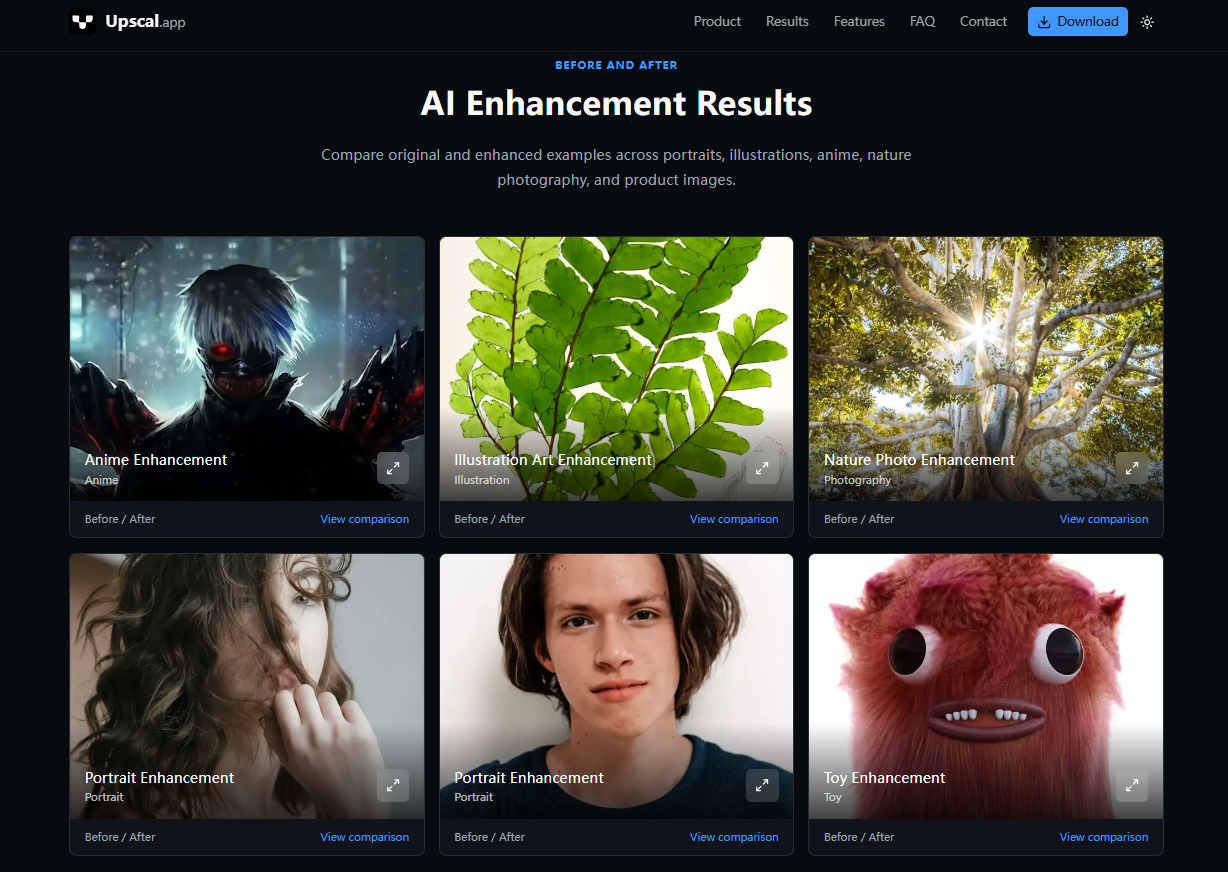
How to Make a Low-Quality Video Clearer with Upscal on Windows
Step 1: Install Upscal
First, download the version compatible with your device. Upscal currently supports Windows, macOS, iPhone, and iPad. Features and processing capabilities may vary across platforms.
Step 2: Import Your Low-Quality Video
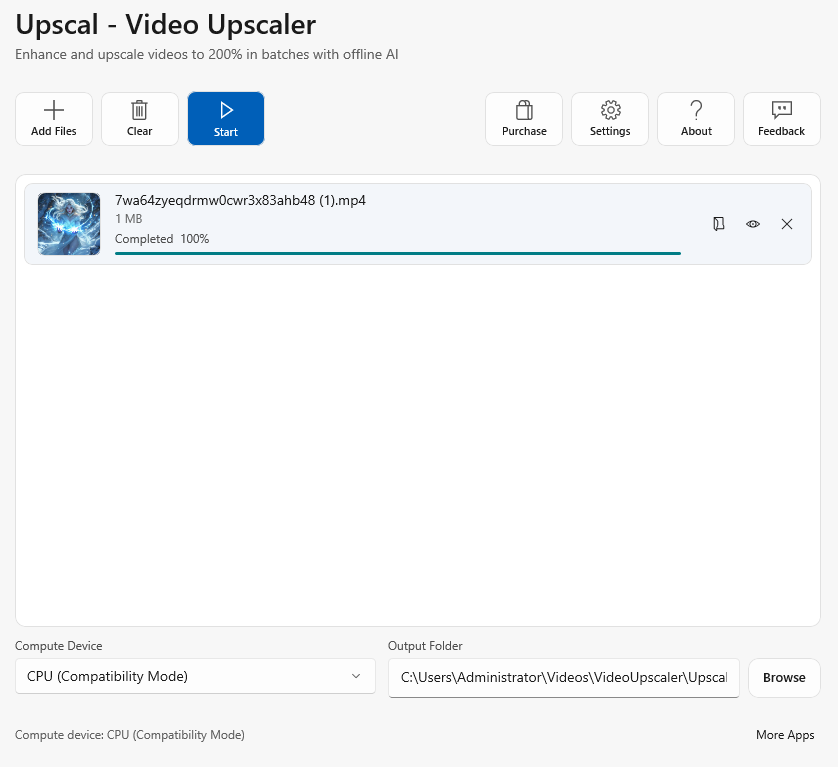
Click "Add Files" to select the videos you want to enhance. Before you begin, back up the original files. Never treat the enhanced version as a substitute for the source file.
Step 3: Choose the AI Enhancement Model
The models available in Upscal vary by platform; please choose one based on your video's content. Currently, for iPhone/iPad, mobile video enhancement offers only the "Quick Model," while macOS provides more advanced video models.
Video Type | Mac | Windows | iOS |
General footage | General model | Medium model | Quick Model |
Detail-heavy footage | Sharp model | Performance model | |
Quick preview | Fast model | Fast model | |
Anime or illustration | Anime model | Medium model |
Step 4: Start the AI Upscaling Process
Start processing and let the app run automatically. Click "Start" to begin processing immediately. Video processing involves handling a large number of frames, and the output size is typically much larger, so it may take some time. Processing time also depends on your device's configuration.
Step 5: Preview the Enhanced Video
Don't judge the results based on a single frame. Evaluate the enhancement by examining details such as characters' facial features and hair, text in the image, the subject's edges, high-contrast edges, and dark areas. A frame may look great when paused but appear odd during playback.
Step 6: Export and Save the Improved Video
Once you're satisfied, click the first folder icon next to the video to view the enhanced version. Organize the enhanced and original versions separately to avoid confusion.

Upscal on Different Devices
Upscal for Windows
The Windows version of Upscal supports local processing, built-in AI models, and GPU acceleration.
 Vertexshare Ltd
Upscal for macOS
The Mac version provides a more advanced video enhancement environment. Upscal uses Apple Metal, Metal Performance Shaders, and Core ML for local processing, with Apple silicon recommended for AI video upscaling. Processing speed will depend heavily on the Mac's hardware, the source file, model, duration, and output scale.
Upscal for iPhone and iPad
Mobile enhancement can be useful when the footage already lives on your phone or tablet. Upscal's current iOS/iPadOS listing describes on-device video enhancement with a Fast Model designed around mobile hardware constraints. The supported Apple versions currently require iOS/iPadOS 16.6 or later.
 通 张
通 张

Summary
Low-quality videos aren't necessarily doomed to remain buried forever on an old hard drive. Whether the image is blurry, the resolution is as low as 480p, or the video is overly compressed—none of this means your memories have to fade. Upscal's video enhancement not only restores videos but also revives memories.
Because sometimes, you're not trying to make an old video look flawless. You want to see it clearly again—a face, a smile, A place you haven't visited in years. Perhaps a moment you thought you'd never be able to relive comfortably.
That might be the biggest reason to give it a try. Let's try Upscal now.